Datadog
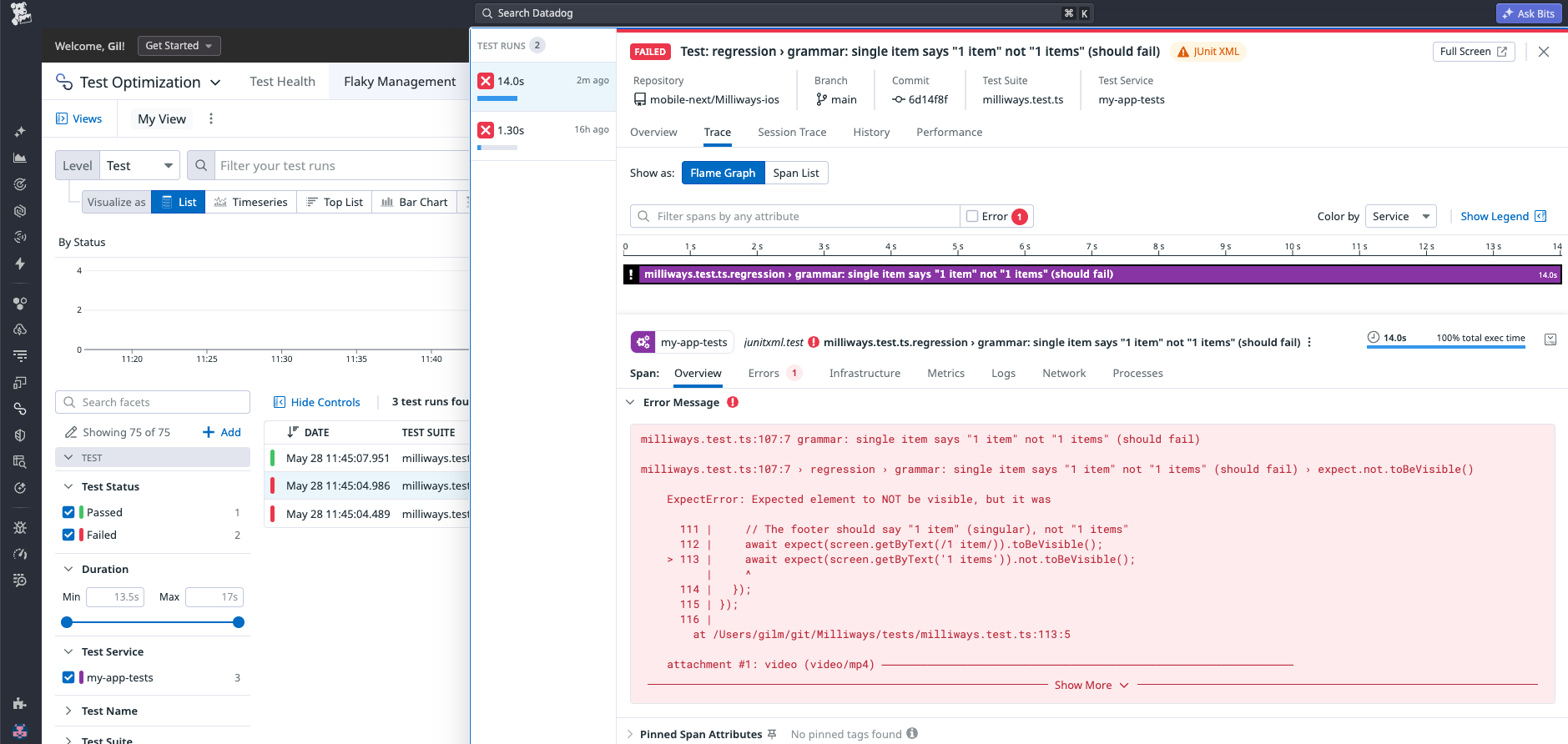
Mobilewright integrates with Datadog Test Run to track test results, flakiness trends, and pass/fail rates over time.
Datadog Test Optimization collects metrics and traces — it does not store screenshots, videos, or view trees. Those artifacts remain in the local HTML report. If you need hosted screenshots alongside test results, consider a Playwright-native reporting platform instead.
Setup
1. Install the Datadog CI tool
npm install --save-dev @datadog/datadog-ci
2. Add the JUnit reporter
Add the junit reporter to mobilewright.config.ts:
reporter: [
  ['list'],
  ['junit', { outputFile: 'test-results.xml' }],
],
3. Run tests and upload
npx mobilewright test

DD_API_KEY=<your-api-key> \
npx datadog-ci junit upload \
  --service my-app-ios-tests \
  --tags platform:ios \
  test-results.xml
Datadog auto-detects CI environment variables (GitHub Actions, GitLab CI, CircleCI, etc.) and tags the test run accordingly.
4. View results
Open **Software Delivery → Test Optimization → Runs ** in Datadog to see test runs, flaky test detection, and duration trends.
CI example (GitHub Actions)
- name: Run Mobilewright tests
  run: npx mobilewright test

- name: Upload results to Datadog
  if: always()
  env:
    DD_API_KEY: ${{ secrets.DD_API_KEY }}
  run: |
    npx datadog-ci junit upload \
      --service my-app-ios-tests \
      --tags platform:ios \
      test-results.xml
The if: always() ensures results are uploaded even when tests fail.
Configuration
| Option | Description |
|---|---|
--service | Service name shown in Test Optimization (e.g. my-app-ios-tests) |
--tags | Comma-separated key:value tags (e.g. platform:ios,env:ci) |
DD_API_KEY | Your Datadog API key |
DD_ENV | Environment tag (e.g. ci, staging) |