Guide

Mobile UI testing with Claude Code, Codex and Cursor

From agent exploration to CI test: let a coding agent drive your iOS or Android app through Mobile MCP, then keep what it did as a Mobilewright test that runs the same way on every pull request.

Last updated:

An agent session is not a test

A coding agent with a phone is a fast way to explore an app and check a flow by hand. But a session costs tokens on every run, and the agent can take a different path each time, so it can't guard a release.

The fix is to split the work: the agent explores once, through Mobile MCP, and writes down what it did as a Mobilewright test. The test runs locally and in CI without the agent. This page is the short version; the docs guide has every file.

The workflow

1. Give the agent a phone

Mobile MCP is an MCP server that lets a coding agent drive an iOS simulator, an Android emulator or a real device. Its installer finds the MCP clients on your machine (Claude Code, Codex, Cursor, VS Code, Windsurf and more) and adds itself to the ones you pick.

Then boot a simulator, start an emulator or plug in a device.

$ npx @mobilenext/mobile-mcp@latest install

Add --yes to set up every client it finds without asking.
2. Let the agent explore the flow

Describe the flow in plain words, and name the end state you expect. The agent can install the app too: it picks the simulator build, the .apk or the .ipa for the device.

The agent reads the screen as a list of elements with roles and labels, taps by element and reports what it saw. If it gets stuck or the app misbehaves, you find out now, before any test code exists.

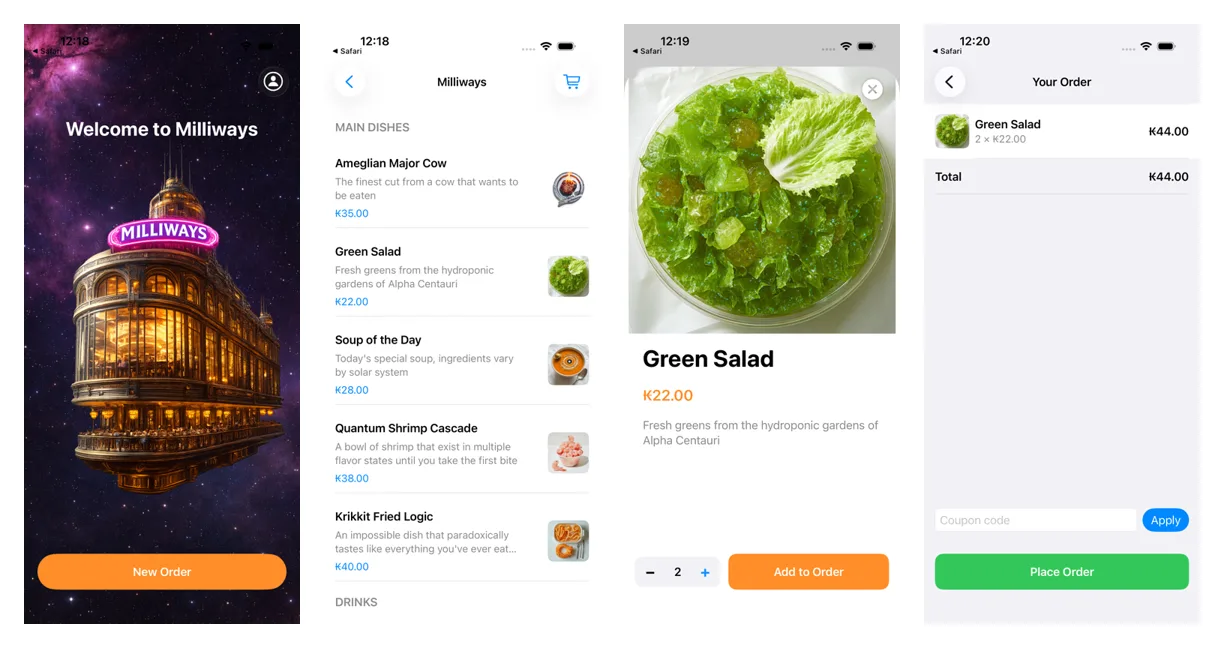
Download and install the app from https://github.com/mobile-next/Milliways/releases/latest on the iPhone simulator. Then open it, start a new order, add two Green Salads, open the order and check that the total is ₭44.00.

Prompt, using Milliways, our sample app. Use your own app and flow.

3. Ask for a Mobilewright test

In the same session, ask the agent to write down what it just did. It already knows the label and role of every element it tapped, so the locators come straight from the session.

If the project doesn't use Mobilewright yet, run npm init mobilewright@latest first; it writes the config and installs the packages.

Now write what you just did as a Mobilewright test in tests/order.spec.ts. Use getByRole and getByText locators, not coordinates, and end with an assertion on the order screen.

Prompt

What the agent writes

An ordinary Playwright-style test: role and text locators, no coordinates and no sleeps. Mobilewright waits for every element before acting on it, and retries every expect until it passes or times out.

Review it like any other code, tighten a locator if you want, and commit it.

import { test, expect } from '@mobilewright/test';

test('adds two green salads to the order', async ({ screen }) => {
  await screen.getByText('New Order').tap();
  await screen.getByText('Green Salad').tap();
  await screen.getByRole('button', { name: '+' }).tap();
  await screen.getByRole('button', { name: 'Add to Order' }).tap();

  await screen.getByRole('button', { name: /View Order/ }).tap();
  await expect(screen.getByText('Your Order')).toBeVisible();
  await expect(screen.getByText('2 × ₭22.00')).toBeVisible();
});

tests/order.spec.ts

4. Run it without the agent

From now on the flow runs in seconds, with no agent and no tokens. Open the report with npx mobilewright show-report.

$ npx mobilewright test --reporter list,html

Running 1 test using 1 worker

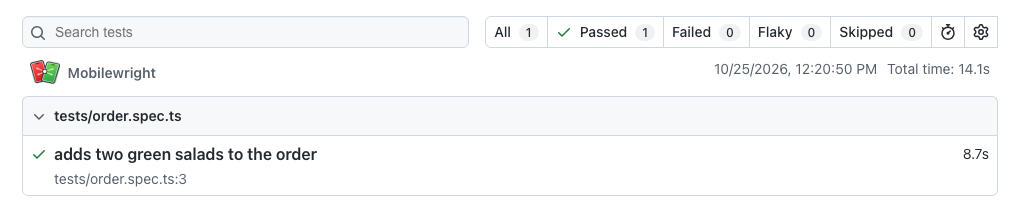
  ✓  1 tests/order.spec.ts:3:5 › adds two green salads to the order (8.7s)

  1 passed (14.1s)

5. Run it in CI

In GitHub Actions, build the app once on a Mac, then run the tests from an Ubuntu runner on cloud devices: Mobilewright allocates a device, installs the app, runs the tests and uploads the report. The same config keeps working locally.

The docs guide has the full config and workflow file, and works with Mobile Next Cloud or any of the other supported cloud providers.

$ npx mobilewright test --reporter list,html   # in GitHub Actions, on cloud devices

What it looks like

The four screens the agent went through: the Milliways home screen, the menu, the Green Salad detail with quantity 2, and the order with a total of ₭44.00
Step 2: the screens the agent went through on the iPhone simulator, from the home screen to an order total of ₭44.00.
The Mobilewright HTML report with one passed test, adds two green salads to the order, in tests/order.spec.ts
Step 4: the HTML report for the test the agent wrote, opened with npx mobilewright show-report.

Why the accessibility tree, not screenshots

  • The same steps every time. An agent can take a different path on every run. A test that taps getByRole('button', { name: 'Add to Order' }) taps that button, or fails and says so.
  • Text, not pixels. The agent reads roles and labels from the accessibility tree instead of sending screenshots to a vision model, which uses far fewer tokens and needs no guessing of coordinates.
  • Locators that survive a redesign. Coordinates break on the next screen size or layout change. Role, label and text locators keep pointing at the same element, on iOS and Android alike.
  • No agent in CI. Exploration costs tokens on every run; a committed test costs none. Keep the agent for new flows and failing tests, and let CI run the suite.

Tips for prompts

  • Name the end state. "Check that the total is ₭44.00" gives the test a real assertion; "add a salad" gives it nothing to check.
  • Ask for role and text locators. The agent sees coordinates too, and coordinates break on the next screen size.
  • One flow per test, so a failure points at one thing.
  • Ask the agent to run npx mobilewright test and fix the test until it passes, before you commit it.

Prefer shell commands to MCP tools? The Mobilewright agent CLI prints each screen as a compact text tree with element refs, using the same locator engine as the tests.